

FIND THE RIGHT INK FOR YOUR BROTHER DCP PRINTER
Brother DCP Printer Ink Cartridges
Brother DCP inkjet printers combine everyday document printing with scanning and copying. Older DCP-C models and newer DCP-J models use different LC cartridge families. Match the complete model number to find its original ink and available compatible multipacks.
Find original and compatible ink for your exact Brother DCP inkjet printer.

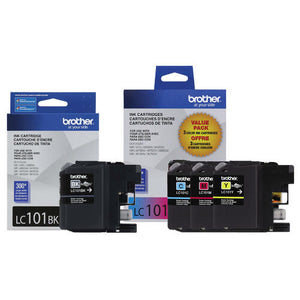
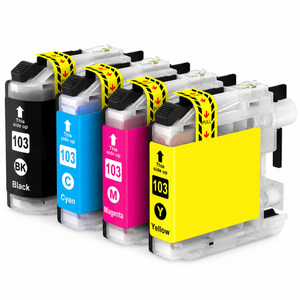
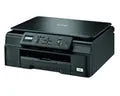
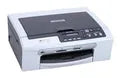
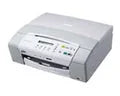
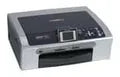

No matching model. Check the full model number on your printer.
GENUINE BROTHER INKOriginal ink.
Original ink.
Ready for more.
Keep your office stocked with original Brother multipacks. Explore colour sets and spare-black bundles for your printer.
Shop original multipacks Match your printer and cartridge number before ordering.


Printer help & guides
Ink families used by Brother DCP printersShop by Cartridge Number
These LC families appear in the linked model listings. Match the exact printer before ordering; each family fits only its supported models.


Help with your Brother DCP printer: ink & troubleshooting questions
Which ink does my Brother DCP printer use?
- Choose the complete model in the finder or directory. This page links 11 printer models and 4 LC ink families; the series name alone does not establish compatibility.
- Your printer’s ink page lets you compare the listed original cartridges and available compatible multipacks. Check the cartridge number, colours and pack contents before ordering.
Do all Brother DCP printers use the same cartridges?
- No. Cartridge shape, chip, colour selection and LC family vary by model. A similar-looking cartridge is not proof of compatibility.
- Use the exact printer listing and check the supported standard or high-yield cartridge number. Laser models use toner rather than the ink cartridges listed here.
How do I find my full printer model?
- Check the front panel, model label or your printer documentation. Include letters and suffixes such as DW, DCP-J or MFC-J where they appear.
- Type the model in the search bar above. The Go button opens the ink page when one model remains.
How do I replace a Brother ink cartridge?
- Follow the manual for your exact model. Leave the printer on, open the ink cartridge cover, release the indicated cartridge and remove it carefully.
- Unpack the matching replacement and remove only the protective parts specified by its instructions. Insert it into the matching colour slot until secure, close the cover and follow the printer’s prompts.
- Official DCP-J152W user’s guide (PDF) ↓
Can I use high-yield ink instead of standard ink?
- Only where your exact printer supports that high-yield cartridge number. Compare the stated page yield and price on its product page.
- High yield describes capacity per cartridge. A multipack describes the number of cartridges supplied; a black twin pack does not include colour cartridges.
What is the difference between original and compatible ink?
- Original Brother cartridges are manufactured by Brother. Compatible cartridges are made by a third party and are listed separately.
- Compare the product type, supported printer models, page yield and pack contents. Not every original cartridge has a compatible alternative listed.
Why does colour ink get used when I mostly print black text?
- On colour inkjet models, cleaning and maintenance can use colour ink. Some print settings also use colour inks when producing greys or photographs.
- Use the supported grayscale and paper settings described in your manual. Do not remove required colour cartridges or assume every model can continue with an empty colour supply.
How can I improve faded, streaky or missing colours?
- Check ink levels, correct installation and the selected paper type. Run the printer’s built-in print-quality check.
- If the check shows gaps, follow the model’s prescribed cleaning steps, then check again. Repeated cleaning consumes ink. Use alignment for misaligned lines rather than repeating cleaning indefinitely.
What should I do if a cartridge is not detected?
- Read the exact message and confirm that the cartridge number and colour match the printer. Check required protective parts and reseat the cartridge as directed by the manual.
- Follow the printer’s prompts when confirming a replacement. Do not apply an ink-counter reset from another model; contact us with the full model and error if the issue continues.
Which paper and quality settings should I use?
- Match the driver’s paper type and size to the paper you loaded. Use Standard for ordinary documents and a supported photo-paper setting for photos.
- Draft can reduce ink use for rough copies where available. Supported paper sizes, envelopes, photo papers and feed trays vary by model.
Where can I find safety sheets and ink page yields?
- Original Brother product pages include a safety-sheet dropdown below the compatible-printer list. Open the PDF for the ink colour you need.
- Product specifications list approximate page yields and the applicable Brother yield method. Actual yield varies with print coverage, settings, cleaning and printing frequency.
How should I store spare ink?
- Keep unused cartridges sealed in their original packaging and follow the storage conditions printed on it. Avoid direct sunlight, excessive heat and freezing temperatures.
- Open a replacement only when you need it. Avoid touching electrical contacts and ink outlets.